Overview
To authenticate with Amplitude, you will need:
- API Key - Your Amplitude API key for authentication.
- Secret Key - Your Amplitude secret key for authentication.
- Hostname - The hostname associated with your server residency.
This guide will walk you through generating your API Key and Secret Key, and finding your Hostname within Amplitude.
Prerequisites:
- You must have an Amplitude account with access to Organization settings and an Enterprise plan.
Instructions:
Step 1: Generating your Amplitude API Key
- Sign in to your Amplitude account.
- Select Organization settings in the upper navigation.
- Select API Keys. In the API Keys tab, you can see the legacy API key. This key was created along with the project.
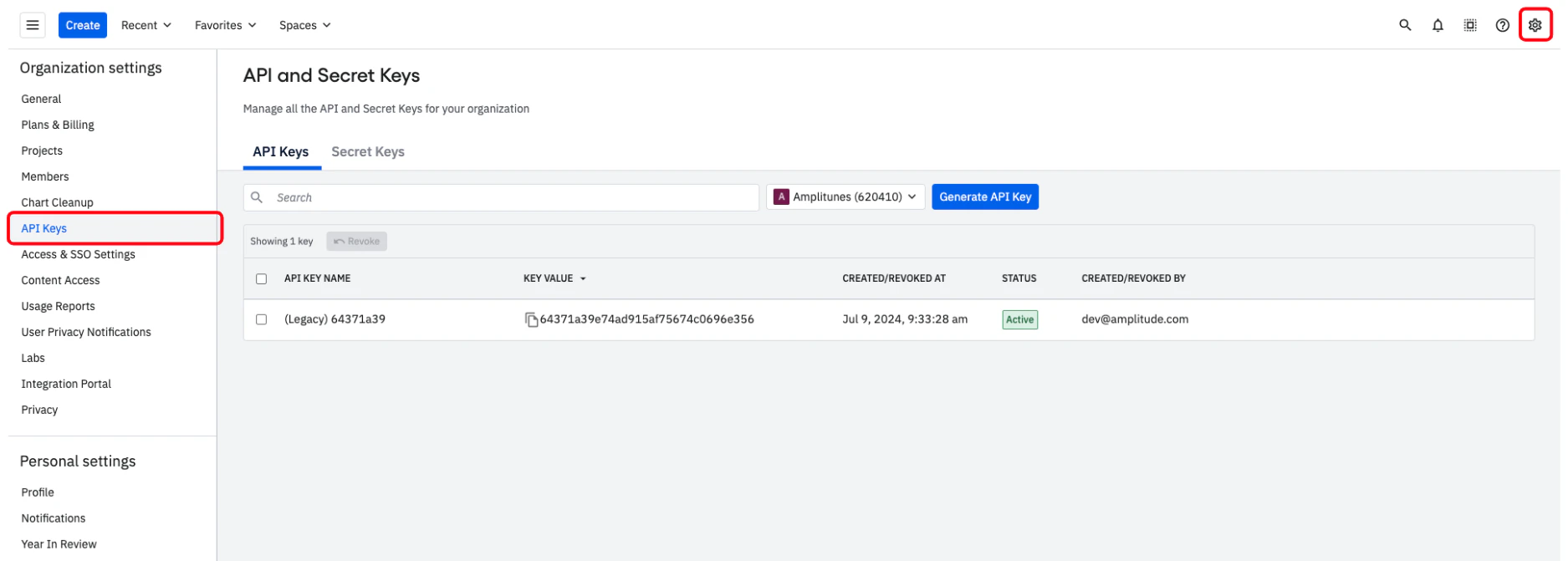
- Select the project you’re interested in.
- Click Generate API Key.
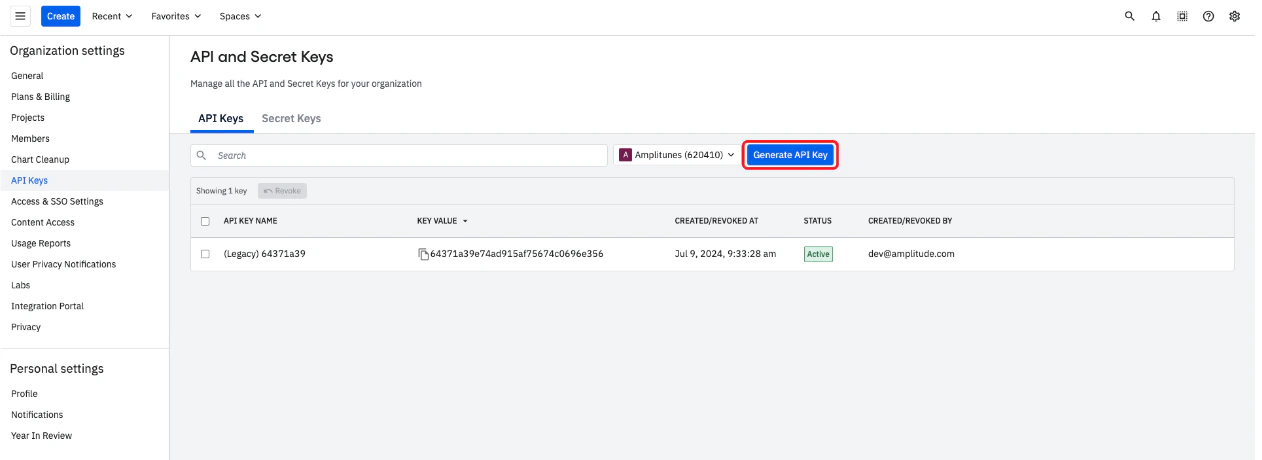
- Name the API key and submit the form to generate it.
Step 2: Generating your Amplitude Secret Key
- In the same API Keys section, select the appropriate project.
- Click Generate Secret Key.
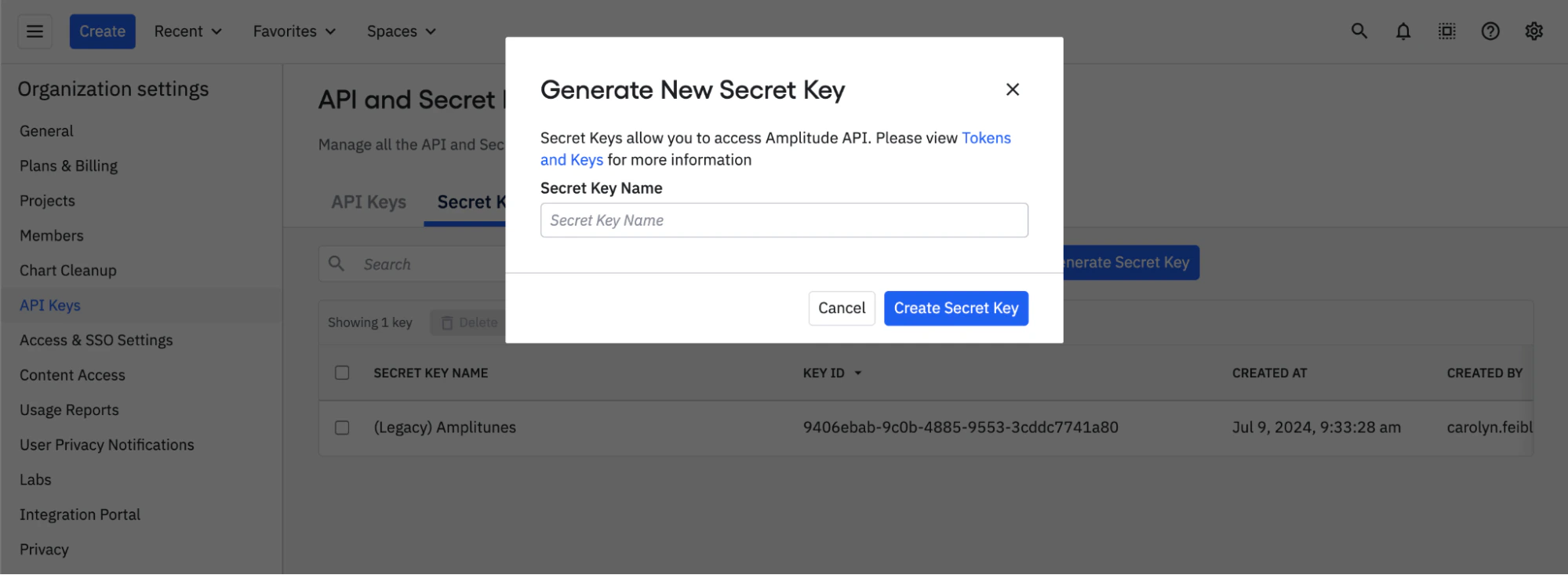
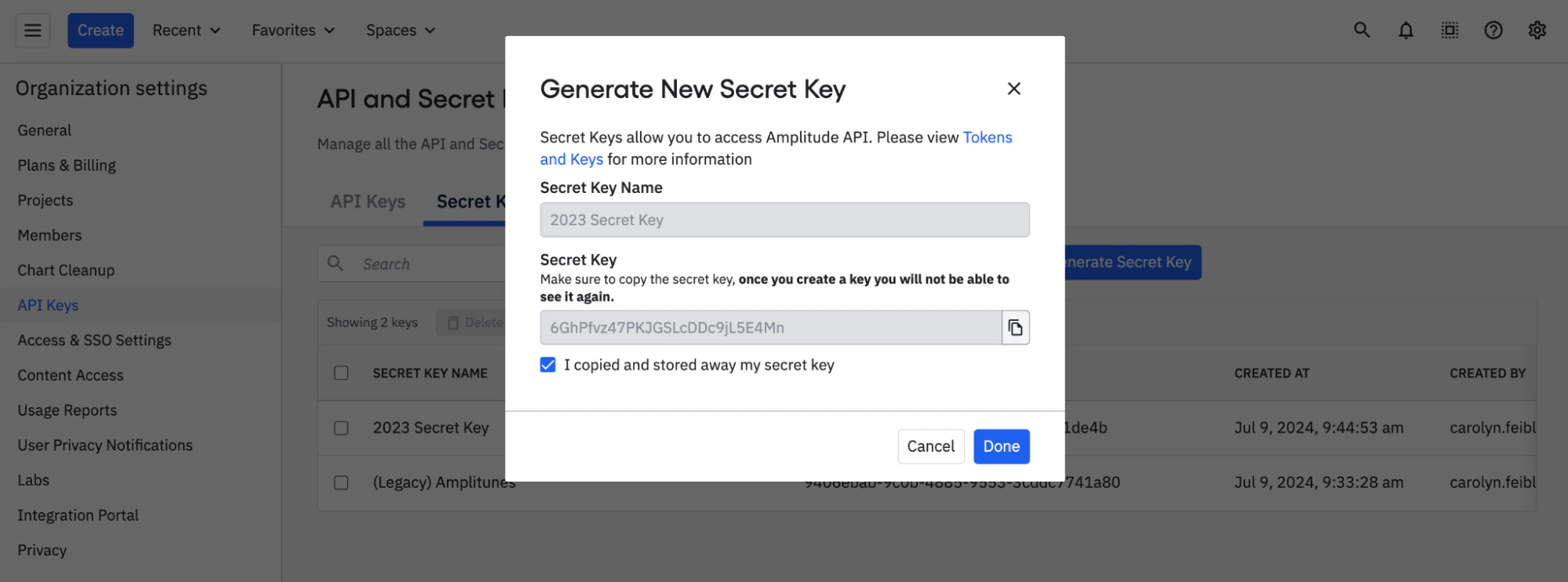
- Name the secret key and copy it to a secure location.
Amplitude doesn’t store secret keys, and there is no way to retrieve them. (The Key ID is a unique identifier for your secret key, but it’s not the key itself.)
Step 3: Finding your Hostname (Optional)
The hostname is optional and depends on your Amplitude server residency. The default is the standard server:
- For standard server (default): Use
amplitude.com or leave blank
- For EU residency server: Use
analytics.eu.amplitude.com
Step 4: Enter credentials in the Connect UI
Once you have your API Key, Secret Key, and Hostname:
- Open the form where you need to authenticate with Amplitude.
- Enter your API Key, Secret Key and Hostname in their respective fields.
- Submit the form, and you should be successfully authenticated.
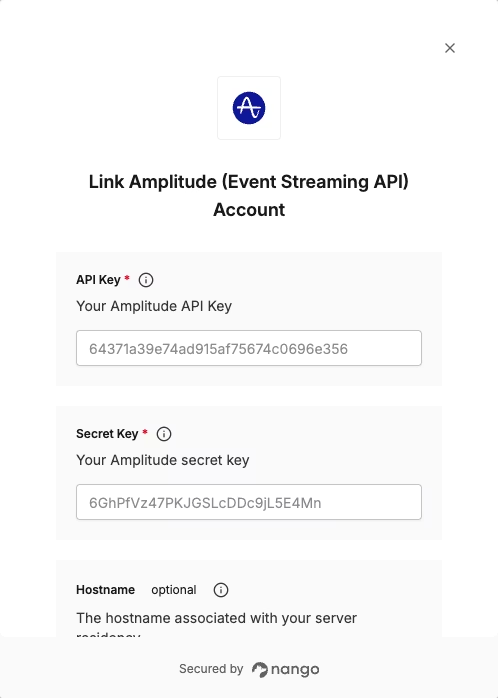 You are now connected to Amplitude.
