Overview
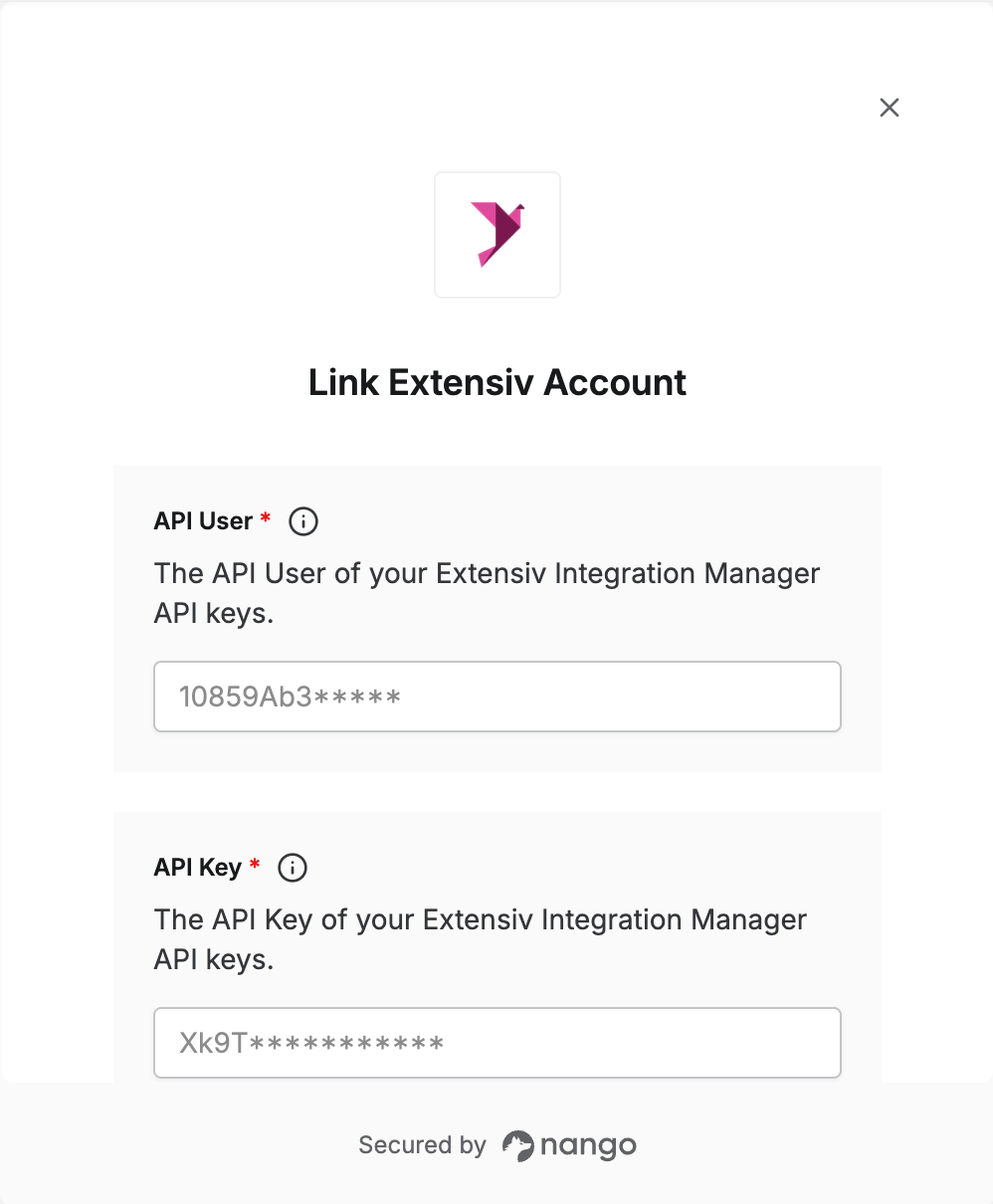
To authenticate with Extensiv, you need an API key pair from Extensiv Integration Manager (formerly CartRover):- API User - The user half of your API key pair.
- API Key - The secret half of your API key pair.
- Cart API keys - for a single sales channel, such as submitting orders from your own cart.
- Merchant API keys - for a merchant’s orders, carts, and inventory.
- Warehouse API keys - for a warehouse or OMS managing many merchants.
Prerequisites
- An Extensiv Integration Manager account.
Step 1: Create your API keys
Log in to Extensiv Integration Manager, then follow the steps for the key type you need. Cart API keys- Go to the Carts tab and click New Setup.
- Select API Access from the list.
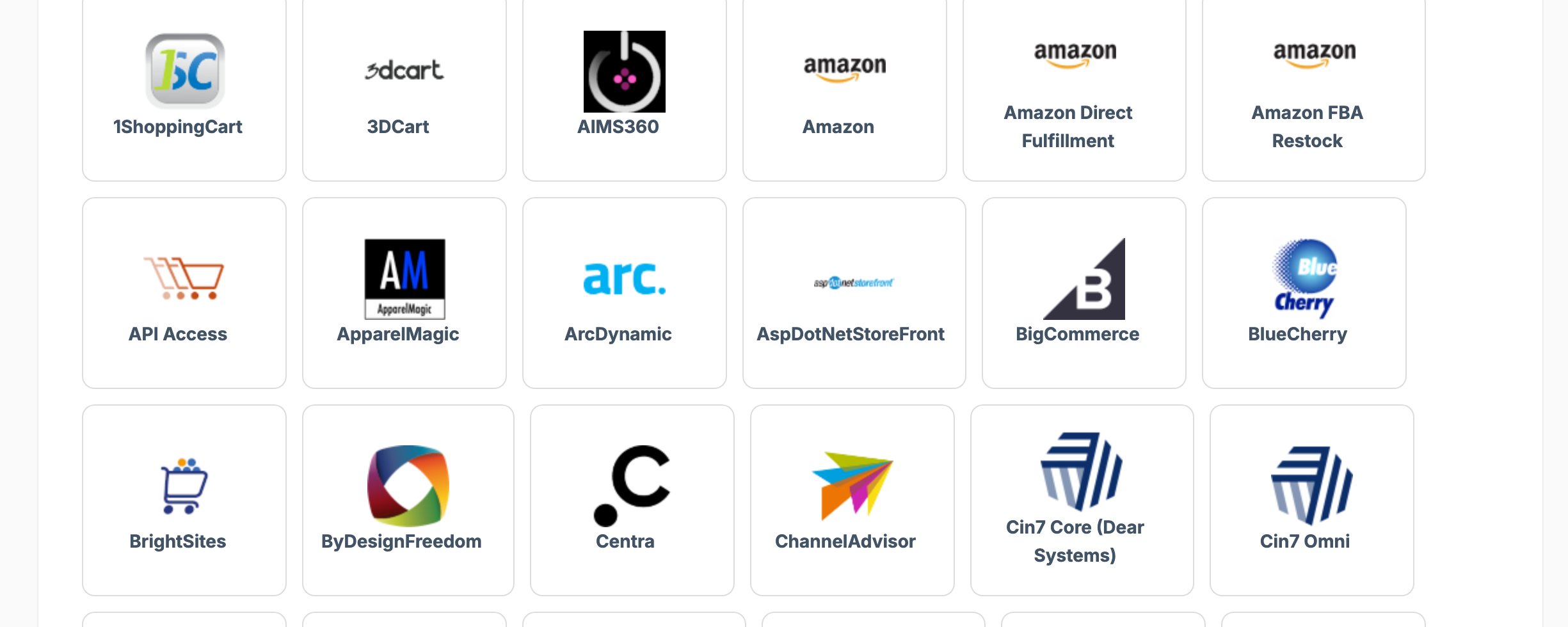
- Copy the API User and API Key.
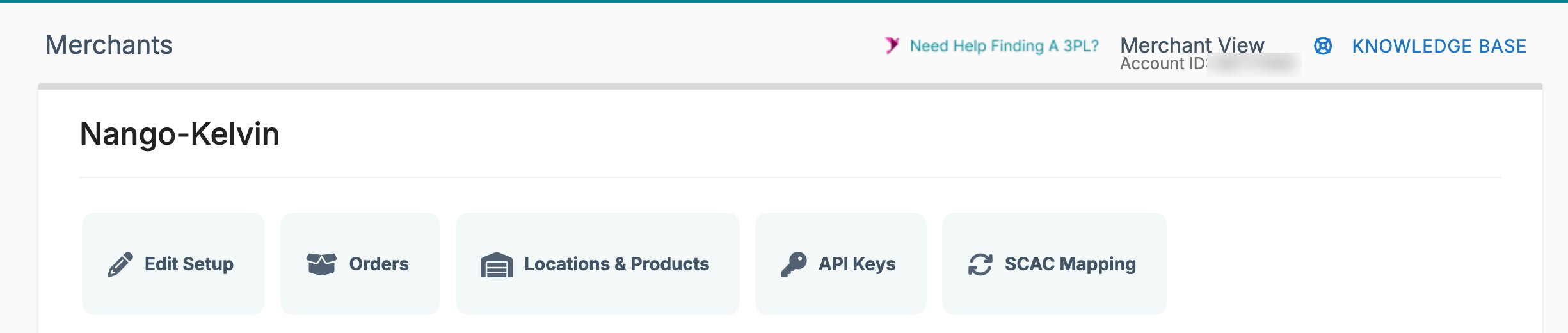
- Go to the Merchants tab. Warehouse users should then click the merchant they want.
- Click API Keys.
- Click New Setup.
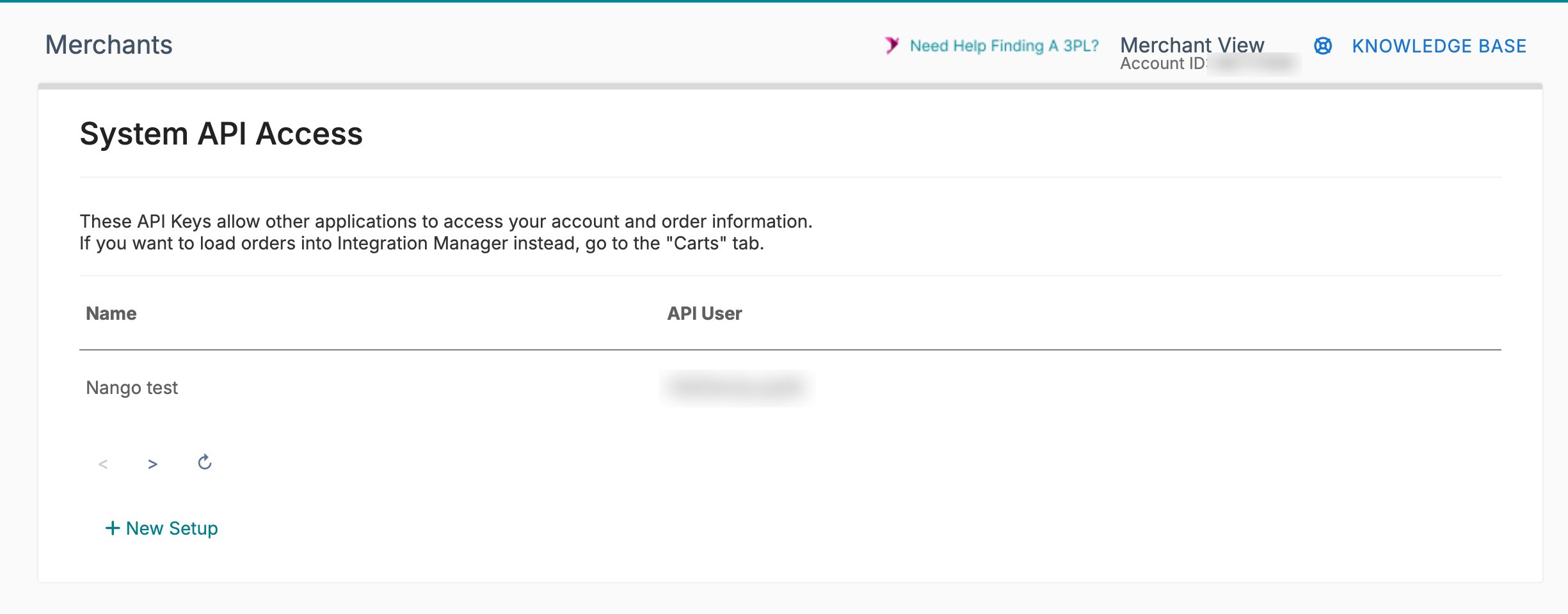
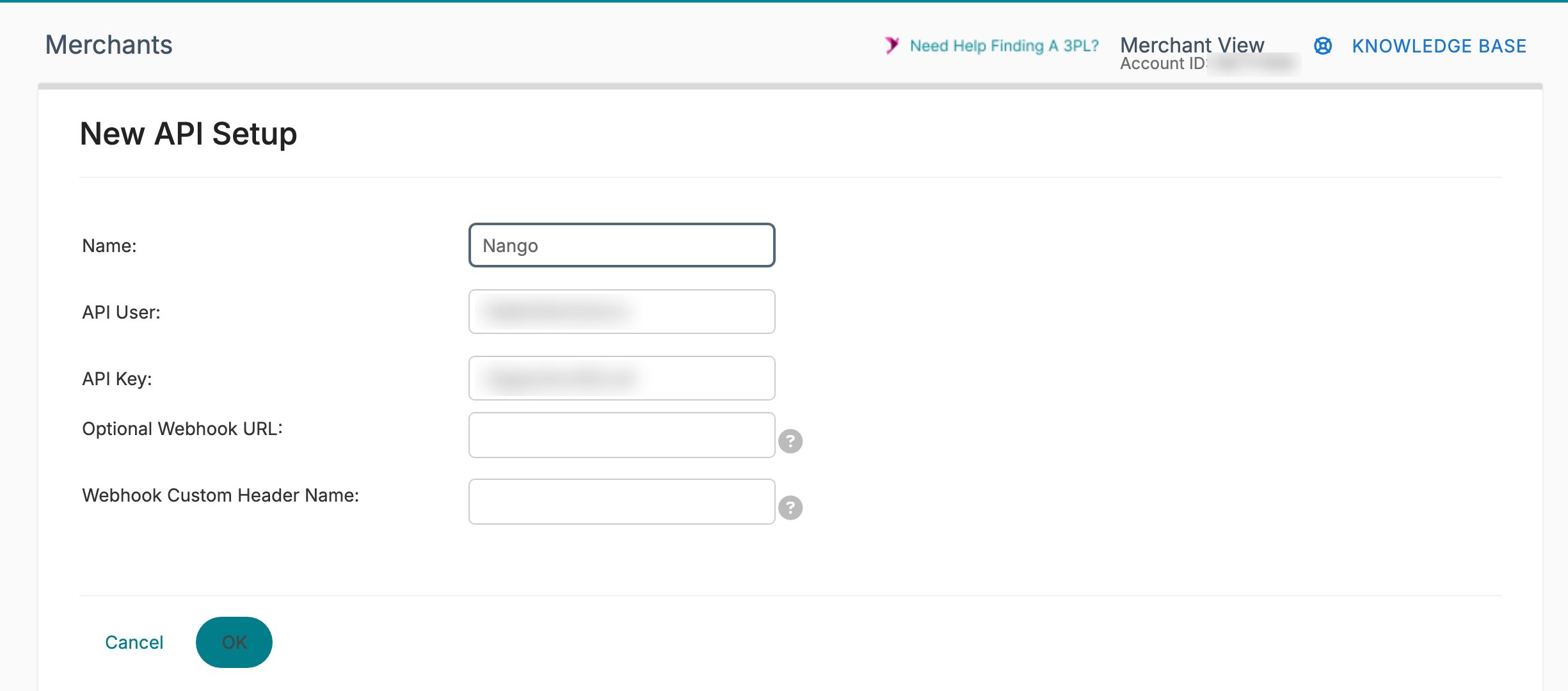
- Enter a Name so you can identify the keys later. The API User and API Key are generated for you.
- Copy the API User and API Key, then click OK to save them.
- Go to the Merchants tab.
- Click Global API Keys, then click New Setup.
- Name the keys so you can identify them later.
- Copy the API User and API Key.
Cycling your API keys in Extensiv Integration Manager immediately invalidates the previous keys, which breaks the connection until you reconnect with the new ones.
Step 2: Enter your credentials in the Connect UI
- Open the form where you need to authenticate with Extensiv.
- Enter your API User and API Key.
- Submit the form, and you should be successfully authenticated.