Overview
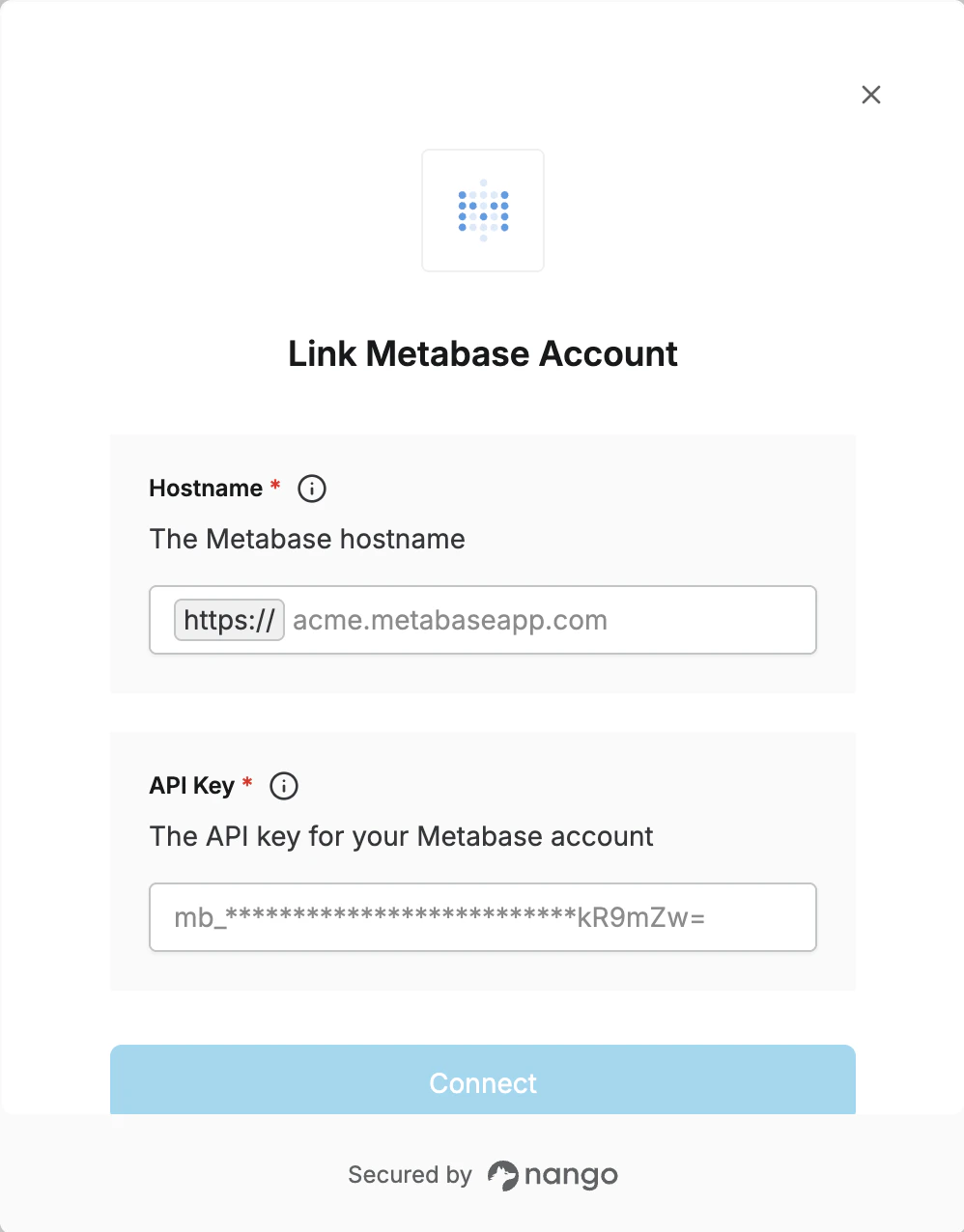
To authenticate with Metabase, you need the following:- Hostname - The full hostname of your Metabase instance (e.g.
acme.metabaseapp.com). - API Key - A unique key that provides access to your Metabase account.
Prerequisites
- You must have administrative access to your Metabase account.
- Ensure you have permission to generate and manage API keys.
Step 1: Finding Your Metabase Hostname
Your Metabase hostname is the full domain visible in your browser’s address bar when logged into Metabase. For example, if your browser URL is: https://acme.metabaseapp.com Your hostname isacme.metabaseapp.com.
Step 2: Generating an API Key
- Log in to your Metabase account.
- Click on the gear icon in the top-right corner of the interface and select Admin settings.
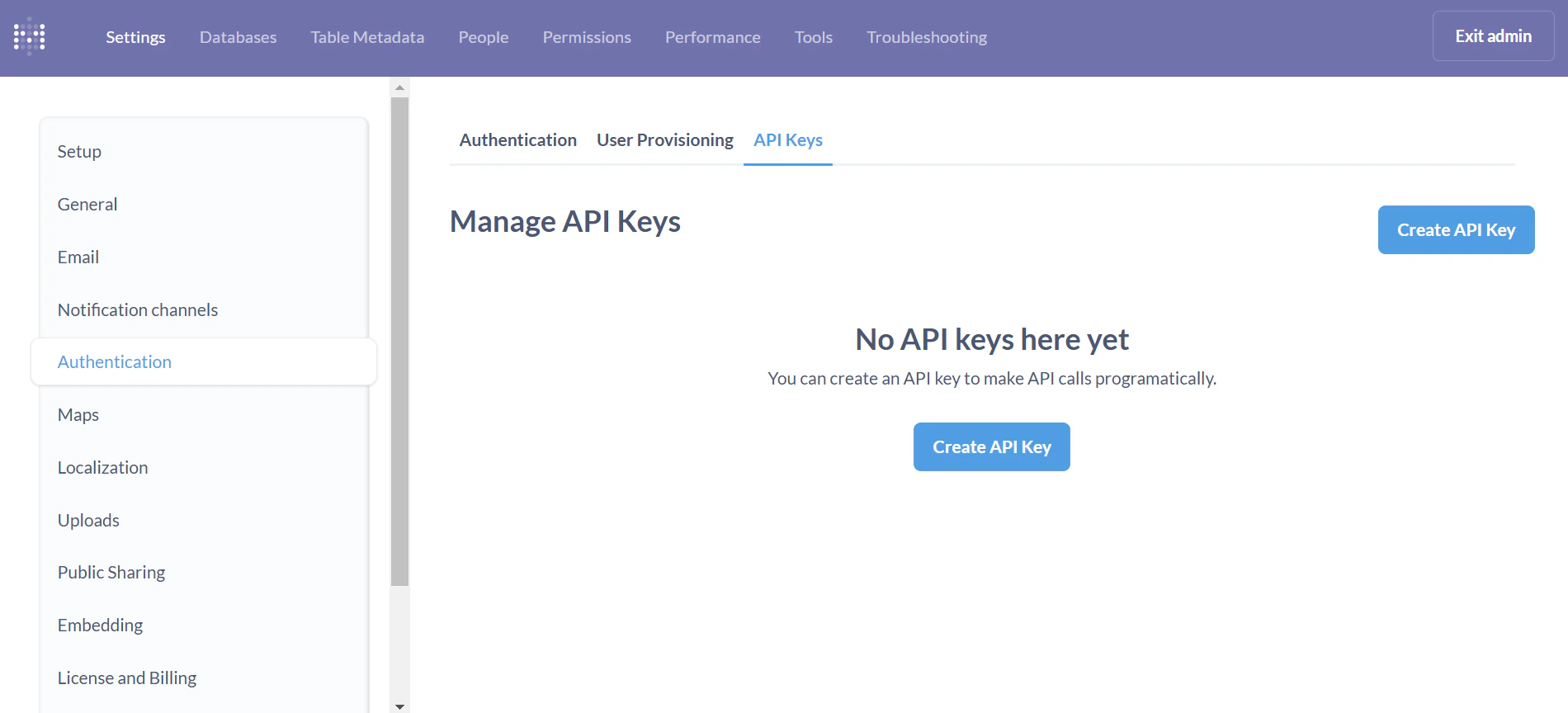
- Navigate to the Settings tab, and click on the Authentication option in the left menu.
- Scroll to the API Keys section and click Manage.
- Click on the Create API Key button.
- In the Key Name field, provide a name for your key that reflects its purpose.
- Assign the key to a Group. The permissions for the API key will be the same as those granted to the selected group.
- Click Create.
- Copy the generated API Key and store it securely. Metabase will not show the key again.
Step 3: Enter credentials in the Connect UI
Once you have your credentials:- Open the form where you need to authenticate with Metabase.
- Enter the Hostname and API Key in their designated fields.
- Submit the form, and you should be successfully authenticated.