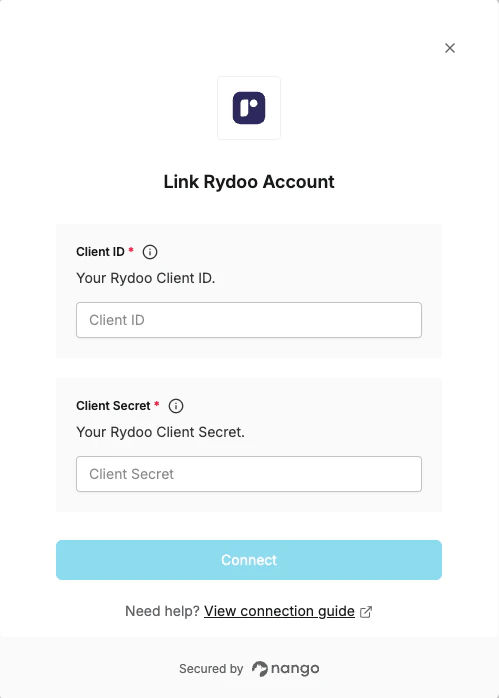
Overview
To authenticate with Rydoo, you need:- Client ID – The public identifier for your Rydoo API client.
- Client Secret – The secret that authenticates your client; treat it like a password and keep it secure.
Prerequisites
- API access must be enabled on your account. Contact your Customer Success Manager or email connect@rydoo.com to request this.
Instructions
Step 1: Generate client credentials
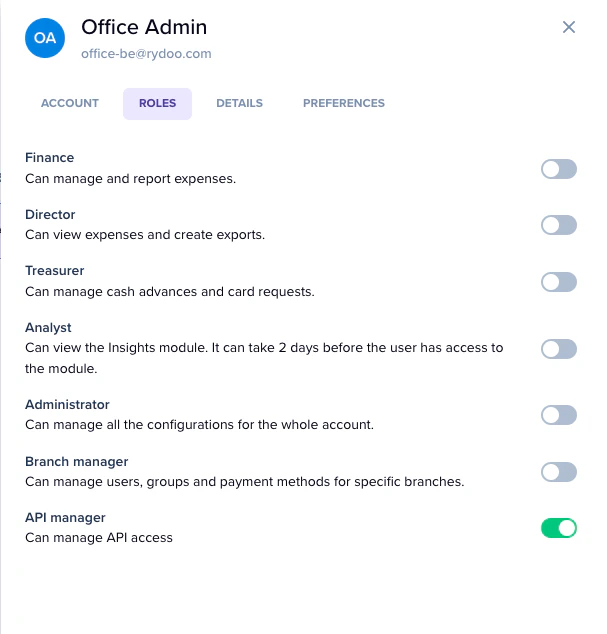
- Go to Admin → Users, find the user responsible for API access, open their Roles settings, enable the API Manager toggle, and click Save.
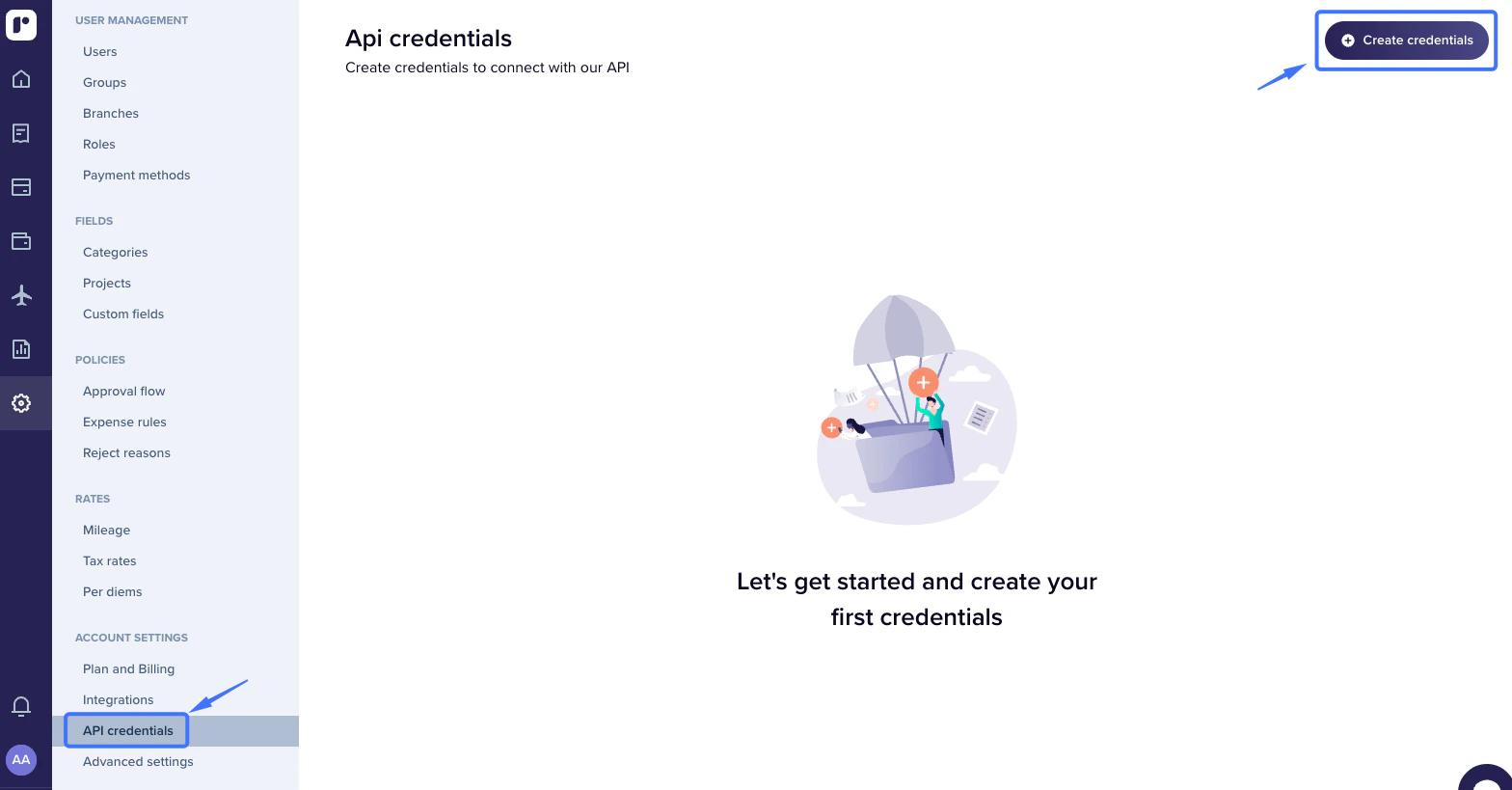
- Go to Admin → API Credentials and click Create credentials.
- The system will generate a Client ID and Client Secret. Set the scopes per data type (Full access, Read-only, Write-only, or Disabled), enter a name and contact email, then click Save.
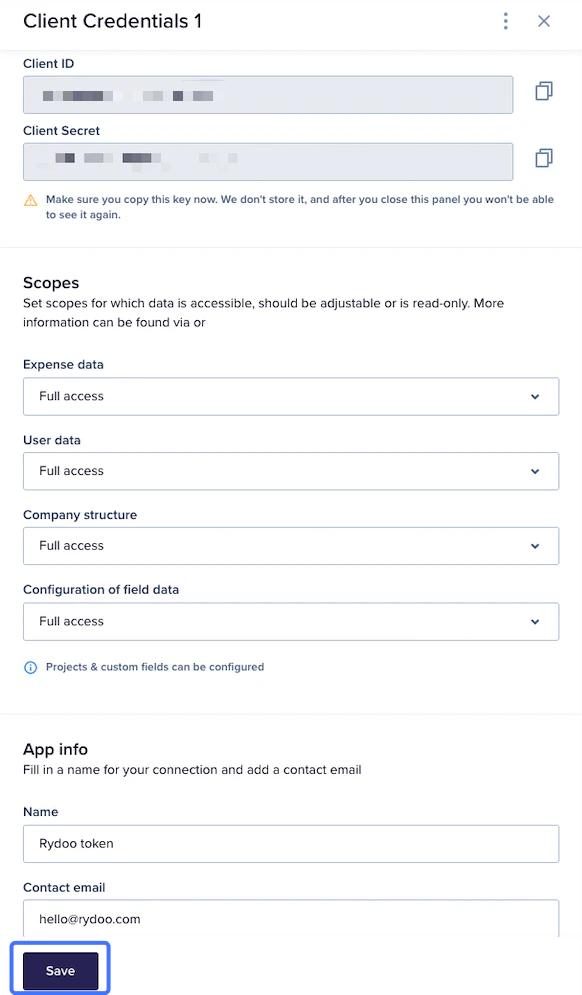
Copy and save the Client Secret immediately — it is only shown once. If you lose it, you can reset it from the same page and a new one will be generated.
Step 2: Enter credentials in Nango
- Open the form where you need to authenticate with Rydoo.
- Enter your Client ID and Client Secret in their respective fields.
- Submit the form, and you should be successfully authenticated.