Overview
To authenticate with DemoDesk, you will need:- API Key - A key that grants secure access to the DemoDesk API. The type of API key you need depends on your intended level of access.
Prerequisites:
- You must have a DemoDesk account
Instructions:
Step 1: Obtaining your API key
- Determine which API key you need: MASTER_3RD_PARTY_API_KEY for partnership-level actions, COMPANY_ADMIN_USER_API_KEY for company-level administration, or USER_API_KEY for individual user-level access.
- If you need a MASTER_3RD_PARTY_API_KEY, refer to your partnership agreement with DemoDesk or contact your DemoDesk partnership manager.
- If you need a COMPANY_ADMIN_USER_API_KEY, create or access your company account in DemoDesk. The key will be provided in the response when the account is created or can be accessed in your company admin settings.
- If you need a USER_API_KEY, add or access a user in your company account. The key will be provided in the response when the user is created or can be accessed in the user management section.
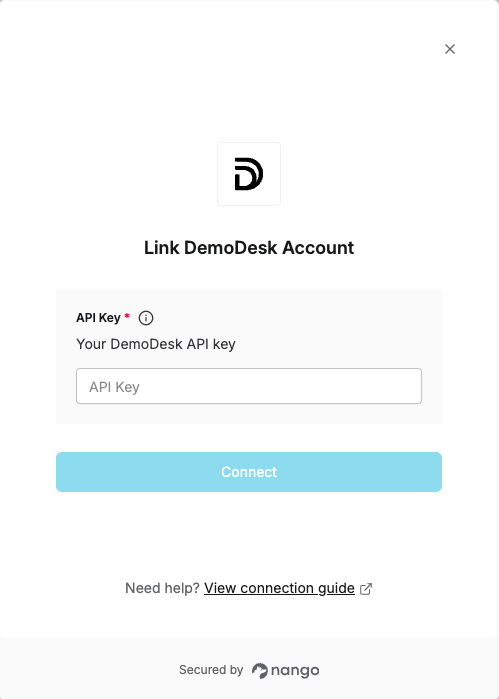
Step 2: Enter credentials in the Connect UI
Once you have your API Key:- Open the form where you need to authenticate with DemoDesk.
- Enter your API Key (MASTER_3RD_PARTY_API_KEY, COMPANY_ADMIN_USER_API_KEY, or USER_API_KEY) in the respective field.
- Submit the form, and you should be successfully authenticated.